Amazon’s jewelry main image follows two rule sets: the general product image guide, and the jewelry category page, which overrides it in six places. The main image needs a pure white background at 255, the piece at 85% of the frame, no model, and a longest side between 500 and 2,100 pixels. This guide takes one ring and one chain through those checks. For the wider channel picture, see our guide to jewelry product photos for online sellers.
Quick answer:
- Shoot on pure white and read RGB 255, 255, 255 in the Info panel: a bright screen makes 250 look white.
- Fill 85% of the frame and keep the whole piece inside it.
- Export 2,000 px on the longest side: above 1,000 px the zoom switches on, and the jewelry page caps the upload at 2,100 px.
- No model, mannequin, text, logo or prop on the main image.
- Save JPEG in RGB, once, at high quality.
What Amazon checks on a jewelry main image
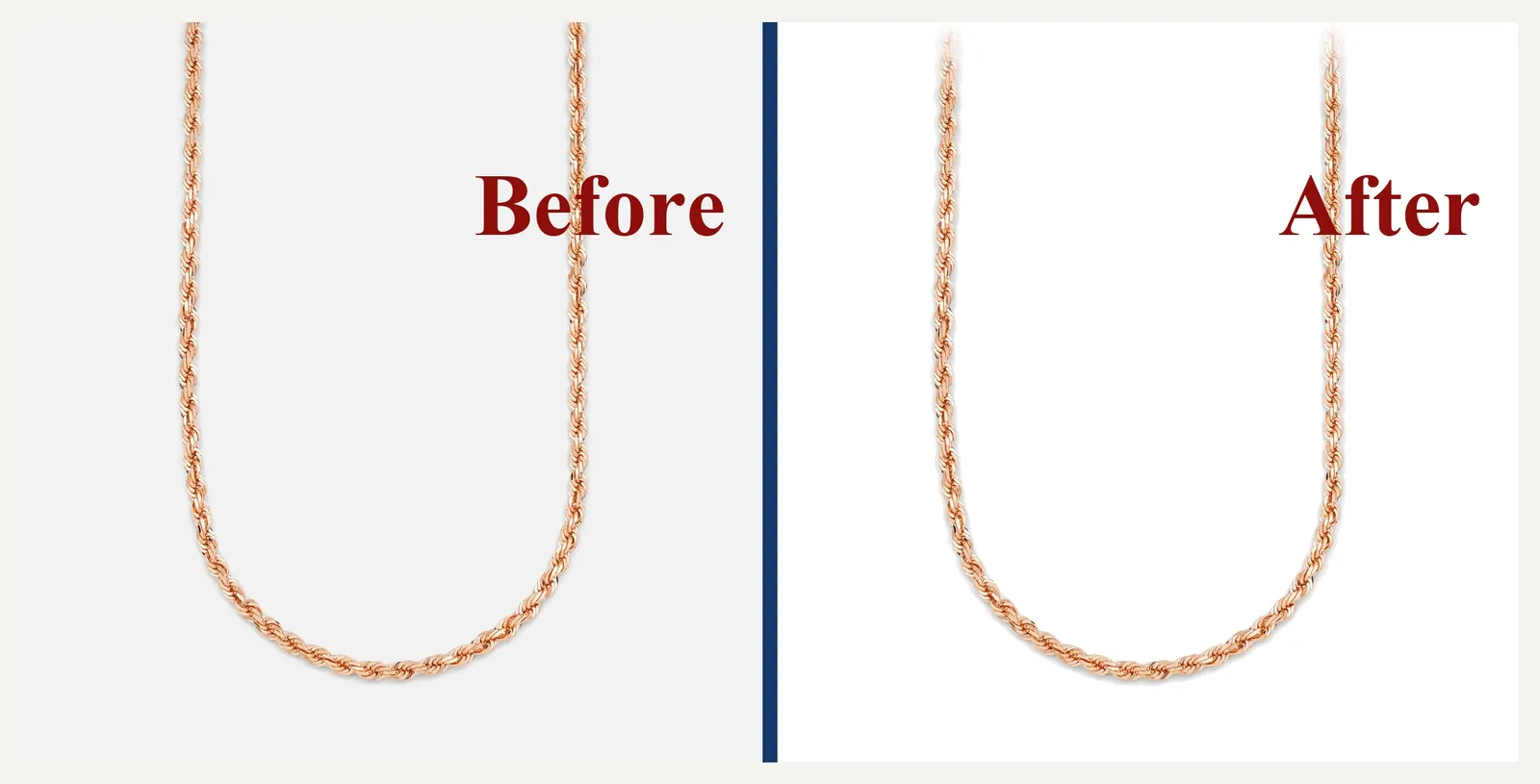
The general guide covers file format, pixel range, background, fill and model rules. The jewelry page tightens the fill, lowers the pixel ceiling, allows one edge exception for close-ups and bans models on the main image. Jewelry is harder than most categories because polished metal reflects the studio, and cut stones throw light back at the camera. Pushing the background to 255 can also pull the silver’s midtones away, so the white and the metal have to be handled as two separate jobs.
Accuracy matters as much as compliance. Retouching that brightens a stone past its grade, or hides a chip, misrepresents the piece. The FTC’s Guides for the Jewelry, Precious Metals, and Pewter Industries cover how a piece is represented to US buyers, and the UK’s CAP Code covers ads there. Removing dust and fixing a background passes both. Changing what the piece looks like does not.
What you need before you start
| What | Why it matters | Minimum |
|---|---|---|
| A calibrated screen | You cannot judge 255 on a screen that renders white as cream. | Any screen with a profile, checked monthly |
| An editor with an Info panel | The white point, fill and edge fade all live in layers and masks. | Any editor with an eyedropper and Image Size |
| A 2,000 px canvas | Sits inside both pixel ceilings: the general 10,000 and the jewelry 2,100. | 2,000 × 2,000 px, 72 dpi, RGB |
| The current spec pages | Amazon edits them without notice; the jewelry page wins. | Seller Central G1881 and G50211, checked the week you shoot |
| A naming sheet | Bulk uploads fail on file names before they fail on pixels. | ASIN plus variant code, e.g. B000123456.MAIN.jpg |
A faulty capture limits every step after it. A highlight clipped to pure white has no stone detail underneath, so reaching 255 means painting it in, which is a misrepresentation. A file shot at 800 px cannot be enlarged to 2,000 px without going soft.
Meet the main-image rules in 6 steps
Allow 60 to 80 minutes for the first piece. Steps 2 and 5 take most of the time, and a file that looks right at 25% has to hold up at 400%.
Step 1: Check the current specs (5 min)
Amazon changes these numbers, and the jewelry page is newer than most blog posts about it.
- Open the general product image guide and the jewelry category page in Seller Central. Both are public.
- Write down the jewelry page’s pixel ceiling, which is lower than the general guide’s.
- Plan for the stricter fill rule, and keep the product’s measurements beside the camera.
Step 2: Set the background to 255 and verify it (10–15 min)
A background that looks white on screen is usually 240 to 250.
- Shoot on an evenly lit white sweep, with the piece far enough from the paper that its shadow falls outside the crop.
- Add a Levels or Curves adjustment above the background and pull the white point to the sweep’s brightest area.
- Hover the background with the Eyedropper and read the Info panel. All three channels must read 255.
- Check the four corners and the strip behind the piece, not only the center.
Step 3: Fill 85% of the frame (5–10 min)
Amazon’s general rule asks for 85% of the image, and the jewelry page asks for at least 80% of the image area. Plan for 85% and both are met.
- Set guides 150 px in from each edge of the 2,000 px canvas.
- Scale the piece until its longest side touches those guides, then center it on both axes.
- Use the same fill for every image in the set, so the thumbnails read as one catalog.
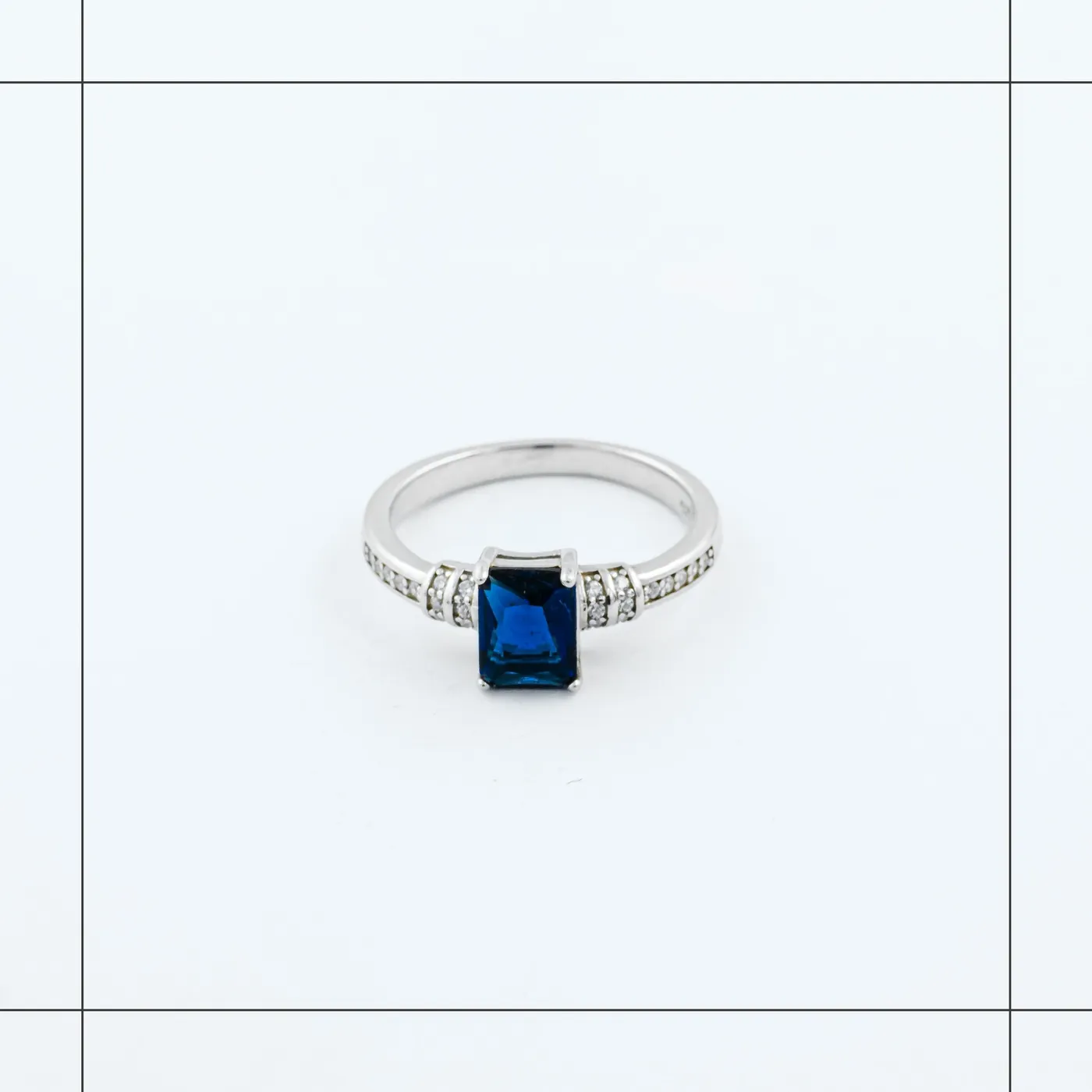
Step 4: Keep the piece in frame, and fade a close-up (10 min)
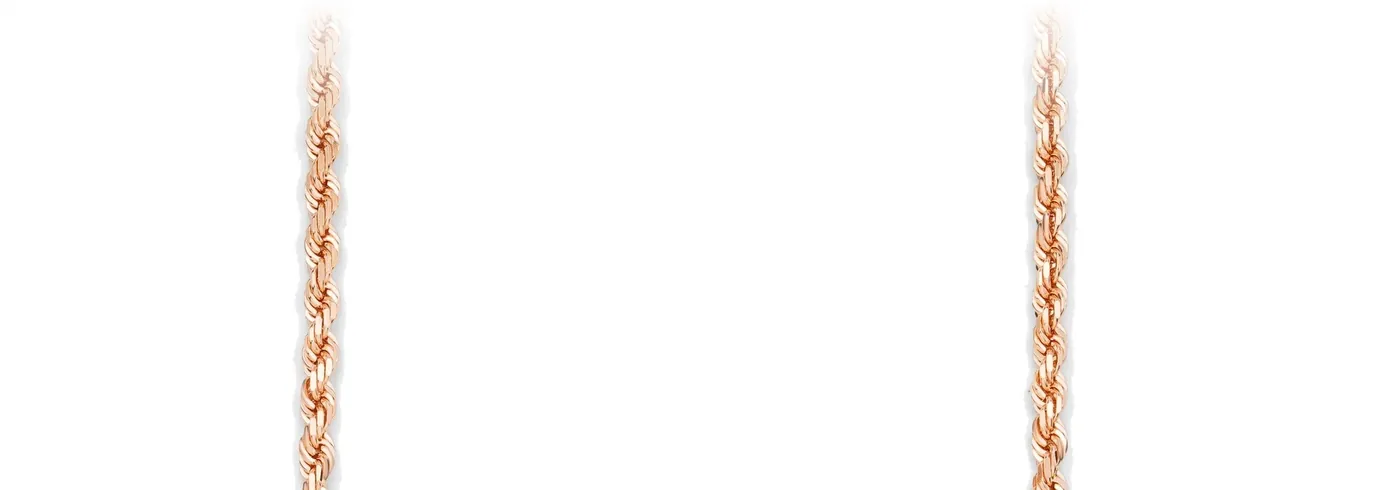
The main image shows the whole product. The jewelry page allows one exception: where a close-up runs past the edge, the product can fade out at the border so the frame stays white.
- Check each edge against the piece at 100%. If the piece is cropped, re-shoot wider rather than scaling down.
- For a close-up, add a Layer Mask and paint black with a soft brush over the last 150 to 250 px where the piece meets the edge.
- Check the border at 400%. The fade should reach 255 before the canvas ends, with no visible line.
Step 5: Hold metal and stone detail at white (20–30 min)
Lifting the background to 255 pulls the silver with it, so the band loses the midtones that describe its shape. Handle the two separately.
- Mask the piece before you touch the background, so the levels cannot reach the metal.
- Recover the band with a Curves layer clipped to the product: lift the quarter tones and hold the highlights below 250.
- Work the stone at 300 to 400% with a Dodge brush at 3 to 5% exposure, and never paint above the stone’s own brightest facet.
- Check the prongs and the inside of the band for dust and stray hairs.
Detail that was never captured cannot be held at 255, so the shoot matters as much as this step. Our Amazon image editing handles the same white and metal work at scale. The macro lens for jewelry photography guide covers the settings that record it.
Step 6: Export, upload and check the live page (15 min)
- Build the master at 2,000 px, then Image > Image Size at 72 dpi with Bicubic Sharper.
- Convert to sRGB and save a JPEG at quality 90 or above. Save once; never resave the same JPEG.
- Name it with the ASIN and variant code, and upload the main image before the additional images.
- Open the live page in a private window: hover the image to confirm zoom works. If the listing is suppressed, check the main image first, since background, fill and model problems cause most suppressions.
Where Amazon’s image specs disagree
Amazon’s general guide and its jewelry page set different numbers, and the category page wins. The widest gap is pixel size.
| Spec | General product guide | Jewelry category page | What to ship |
|---|---|---|---|
| Longest side | 500 to 10,000 px | 500 to 2,100 px | 2,000 px |
| Zoom threshold | 1,000 px or more | 1,000 px or more | 2,000 px |
| Fill | Product at 85% of the image | Product at 80% of the image area | 85% by longest side |
| Background | Pure white, 255, 255, 255 | Pure white, 255, 255, 255 | 255, checked in the Info panel |
| Edge | Entire product inside the frame | A close-up may fade out at the border | Whole piece, or a faded close-up |
| Model | Clothing on a model; accessories flat | No model or mannequin on the main image | No model on the main image |
Common mistakes
| Mistake | What it looks like | Fix |
|---|---|---|
| Judging white by eye | A background at 242 that looks white on a bright screen | Read the Info panel: all three channels at 255 |
| Filling by width only | A tall pendant that leaves the frame at the bottom | Scale by the longest side, then center on both axes |
| Uploading the 3,000 px master | Sharp on screen, but over the jewelry page’s 2,100 px cap | Export a 2,000 px copy for the listing |
| A model on the main image | An on-hand ring as image one | Move it to an additional image; the main image shows the piece alone |
| A hard edge on a close-up | A chain cut off at the frame with a visible line | Fade the last 150 to 250 px to 255 |
Do it yourself or outsource?
If you shoot a few pieces a month and the files already pass the white and fill checks, do it yourself. At 30 minutes a file, 120 images is 60 hours. At 60 minutes, it is 120 hours, most of a month. Pieces with stones need more time again: the channel rules for each marketplace set the file, and the stone work sets the hours.
If the white and metal need rebuilding on every file, a Amazon photo editing service takes the work off your desk. Our retouchers check each file at 100% zoom before it leaves, and most orders come back within 24 hours. To test the finish on your own pieces, send us your trial images. It’s free, with no card or sign-up.
Frequently asked questions
Yes. Amazon’s jewelry guidance asks for RGB 255, 255, 255. Check all three channels in the Info panel, not by eye, because a background at 240 to 250 looks white on most screens.
No. The main image shows the piece alone. Models, mannequins and hands can appear in the additional image slots.
Export 2,000 px on the longest side. That is above the 1,000 px zoom threshold and under the jewelry page’s 2,100 px ceiling.
The jewelry page allows a fade. Fade the product into pure white at the outermost 150 to 250 px, so the border stays at 255 and no line shows.